PC Fan Loud Idle Fix:
Table of Contents
There is nothing more annoying than sitting at your desk trying to study or code in C++, only to have your PC sound like it’s preparing for takeoff. If your computer is just sitting on the desktop with no games running, it should be near-silent.
If it isn’t, you have a thermal equilibrium problem.
As a Physics student, I look at fan noise differently. A fan spins because a sensor is reporting a high temperature. To solve the noise, we have to solve the heat transfer. Here is the definitive PC fan loud idle fix using simple logic and basic maintenance.
1. The Physics of Dust (The Insulator Effect)
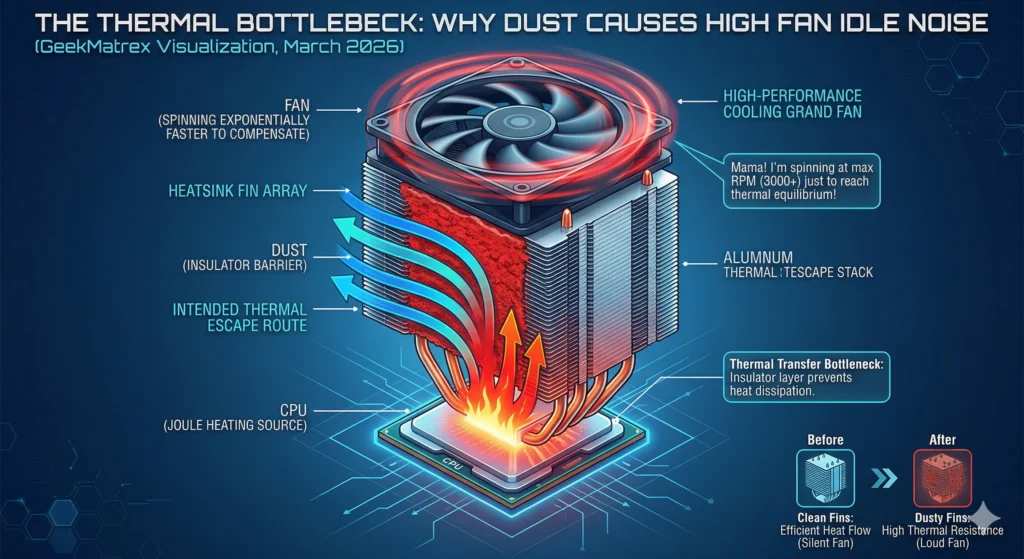
In physics, we study how different materials conduct heat. Dust is a terrible conductor; it is an insulator.
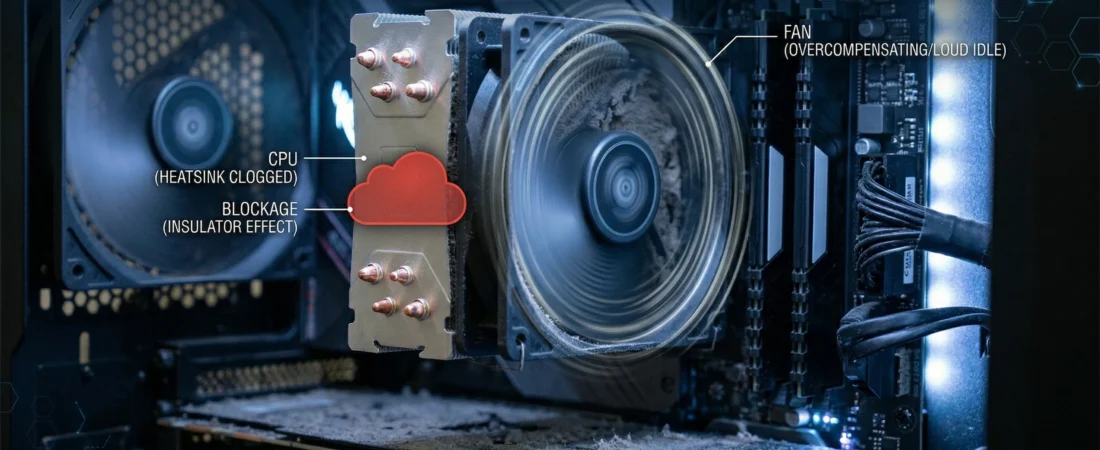
When dust builds up on your CPU heatsink or GPU fins, it creates a thermal barrier. Even at idle, your chips generate a small amount of “Joule Heating.” If that heat can’t escape into the air because of a layer of dust, the temperature rises. The motherboard sees this and ramps up the fan RPM to compensate.
The Fix: Use a can of compressed air to blow out your heatsinks. You must clear the “fins” where the heat exchange actually happens. For a visual guide on this maintenance, see this excellent tutorial from Newegg on how to clean your PC without damaging components.
2. Check for “Ghost” CPU Loads
Sometimes your PC isn’t actually “idle.” In C++ programming, we talk about background threads. A poorly optimized app or a Windows Update service could be hogging 10% of your CPU in the background.
- The Check: Press
Ctrl + Shift + Escto open Task Manager. - The Fix: Look at the “CPU” column. If a process like “Windows Modules Installer” or a random browser helper is using more than 5% while you aren’t doing anything, that is why your fans are spinning. If you are on Windows 11, you may need to run Microsoft’s Windows Update Troubleshooter to fix a stuck process that causes high idle usage.
3. Calibrate Your PWM Fan Curves in BIOS
Most motherboards come with “Aggressive” fan profiles out of the box. They are programmed to jump from 20% speed to 60% speed the moment the CPU hits 50°C. Modern CPUs have “bursty” heat patterns—a simple task can spike the temp for one second. You don’t need the fan to scream for that.
The Fix:
- Restart your PC and tap
DelorF2to enter the BIOS. - Find Hardware Monitor or Fan Control.
- Set your fans to PWM Mode (not DC).
- Adjust the curve so the fans stay at a constant, low RPM (around 30% to 40%) until the CPU passes 65°C. For a visual guide on modern BIOS fan controls, refer to this breakdown from MSI which explains how PWM (Pulse Width Modulation) fan curves are mapped.
4. The MPO and Hardware Acceleration Conflict
If your GPU fans are the ones spinning at idle, it might be a software conflict. In 2026, many browsers use Hardware Acceleration that keeps the GPU in a “High Power State” even when just looking at a static page.
The Fix: Disable Hardware Acceleration in your browser settings (Chrome/Edge). For NVIDIA users who are seeing idle fan spikes even after this, this could be related to a known Multi-Plane Overlay (MPO) conflict. You can try the solution in this NVIDIA Customer Care article which provides a .reg file to disable MPO.
5. Thermal Paste Degradation (The Final Boss)
If you’ve cleaned the dust and fixed the software, but the fan is still loud, your Thermal Interface Material (TIM) has likely reached its end of life.
Thermal paste fills the microscopic gaps between the CPU and the cooler. Over 2–3 years, the paste dries out and loses its thermal conductivity. This creates a severe bottleneck in heat transfer.
The Fix: If your PC is more than 3 years old, it’s time to reapply high-quality thermal paste. Brands like Thermal Grizzly Kryonaut provide industrial-grade thermal conductivity that can drop idle temps by 10°C instantly. It’s a $10 fix that solves the problem permanently.
GeekMatrex Verdict
A loud fan is just a symptom of a physics problem. By clearing the insulators (dust), managing background threads, and smoothing out your PWM curves, you can return your workspace to the silence it needs for deep focus.
Some other GEEKMATREX Guides:
The Ring 0 Conflict: Kernel-Level Anti-Cheat Explained (and Why Your PC Crashes)
Is Process Lasso Safe? The Truth About Bans, Viruses, and System Stability (2026 Review)
Stop Using Game Boosters: Why Process Lasso is the Only Tool You Need (2026 Guide)
Stop Your Phone Overheating: The Technical Guide to Fixing Android AI Battery Drain Fix (2026)
Stop CPU Core Parking: How to Unlock Ultimate Performance Windows 11 (Free Tool)
Intel vs AMD in 2026: Which CPU Is Better for Gaming, Work, and Budget Builds?
Android Optimization in 2026: Make Any Phone Faster, Smoother, and More Battery-Friendly
How to Remove Bloatware Safely on Android (No Root) — 2026 Step‑By‑Step Guide