
Best Free Windows Optimization Tools
Table of Contents
Windows can feel fast on day one—and slow after months of installs, updates, startup clutter, and background processes. The good news? You don’t need to reinstall Windows every few months. You need the right tools and the right method.
In 2026, there are numerous “PC booster” apps online, but most are either bloated, show fake problems, or aggressively mess with settings. In this post, I’m sharing 15 free tools that are trusted, widely used, and actually helpful for performance + stability on Windows 10 and Windows 11.
I’ll also tell you:
- What each tool does
- When to use it
- What to avoid
- A simple “tool stack” for beginners vs power users
Let’s go.
Before You Use Any Tool: Do This First (2 Minutes)
✅ 1) Create a Restore Point
If anything goes wrong (rare, but possible), you can roll back.
- Search: Create a restore point
- Select C: drive → Create → name it “GeekMatrix Before Tools”
✅ 2) Don’t Install 10 “Optimizers” Together
Use 1–3 tools, do the job, uninstall what you don’t need. Optimization is not about running 20 apps—it’s about removing waste and controlling startup/background behavior.
The Best Free Windows Optimization Tools (2026)
1) Microsoft PC Manager (Best for Beginners)
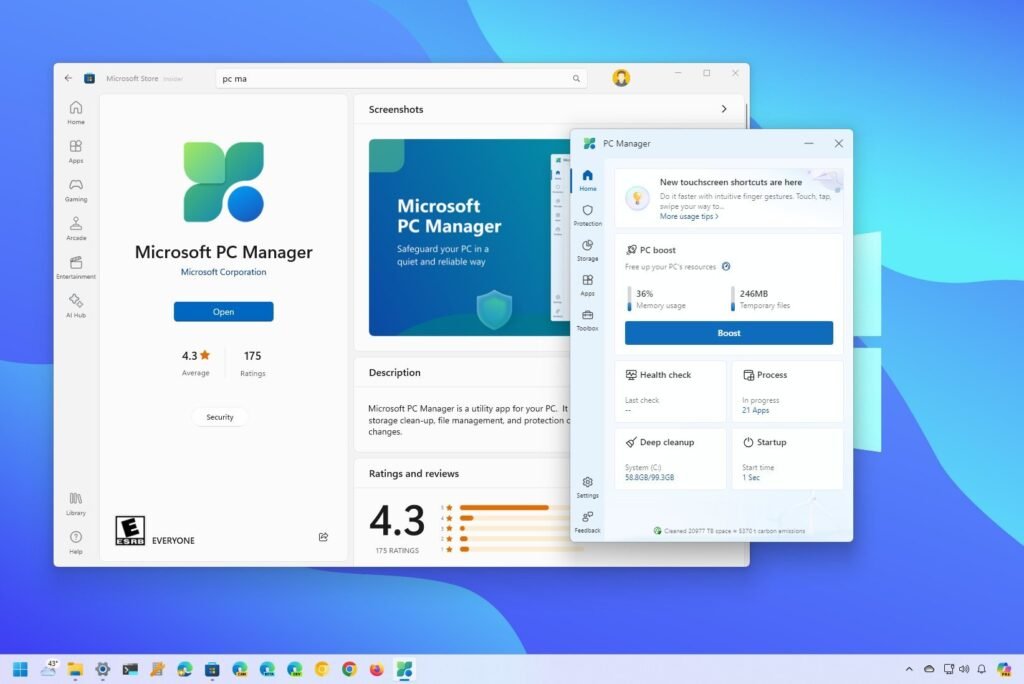
Use for: quick cleanup, startup control, process management, large file detection.
Why it’s good: Made by Microsoft, simple UI, safe defaults.
What to do inside it:
- Boost (clears memory + stops safe background apps)
- Storage cleanup (temporary files + system cache)
- Startup management (disable unneeded auto-start apps)
✅ Best for: new users who want speed without deep technical steps.
2) Autoruns (Sysinternals) – The King of Startup Control
Use for: removing hidden startup entries, scheduled tasks, auto-running services.
Why it’s powerful: Task Manager only shows basic startup apps. Autoruns shows everything.
GeekMatrix tip:
- Run Autoruns as Admin
- Go to Logon, Scheduled Tasks, Services
- Disable things like old updaters, leftover launchers, and “helper” apps you don’t use
⚠️ Warning: Don’t disable anything you’re unsure about. If it says Microsoft Corporation and looks critical—leave it.
✅ Best for: intermediate users who want faster boot and less background load.
3) Process Explorer (Sysinternals) – Understand What’s Eating Your CPU/RAM
Use for: finding heavy processes, suspicious activity, CPU spikes, memory leaks.
Why it’s better than Task Manager: More detail + shows parent/child processes + easy analysis.
Real scenario:
Your CPU randomly goes 40–60% idle? Process Explorer helps you catch the exact app/service causing it.
✅ Best for: diagnosing lag spikes and “why is my PC slow today?” issues.
4) WizTree – Find What’s Filling Your Drive (Fastest)
Use for: locating huge files/folders (games, downloads, temp, backups).
Why it’s amazing: It scans insanely fast and visually shows what’s eating storage.
Common storage hogs:
Downloadsfolder- Old game installers
AppDatacache- Video project folders
- Leftover Windows update junk (sometimes)
✅ Best for: low disk space = slow Windows. Fixing storage often improves speed instantly.
5) BleachBit – Safe Cleanup (If Used Smartly)
Use for: clearing junk files, cache, temp data.
Why it’s good: It’s transparent and doesn’t act like a scam “PC booster.”
Safe settings:
✅ Windows temp, log files, recycle bin
✅ Browser cache (only if you don’t mind being logged out sometimes)
❌ Don’t wipe saved passwords unless you know what you’re doing
✅ Best for: monthly cleanup.
6) CrystalDiskInfo – SSD/HDD Health Check (SMART)
Use for: checking disk health (bad sectors, temperature, wear level).
Why it matters: A dying HDD/SSD can cause slow boots, freezes, crashes, and corrupted files.
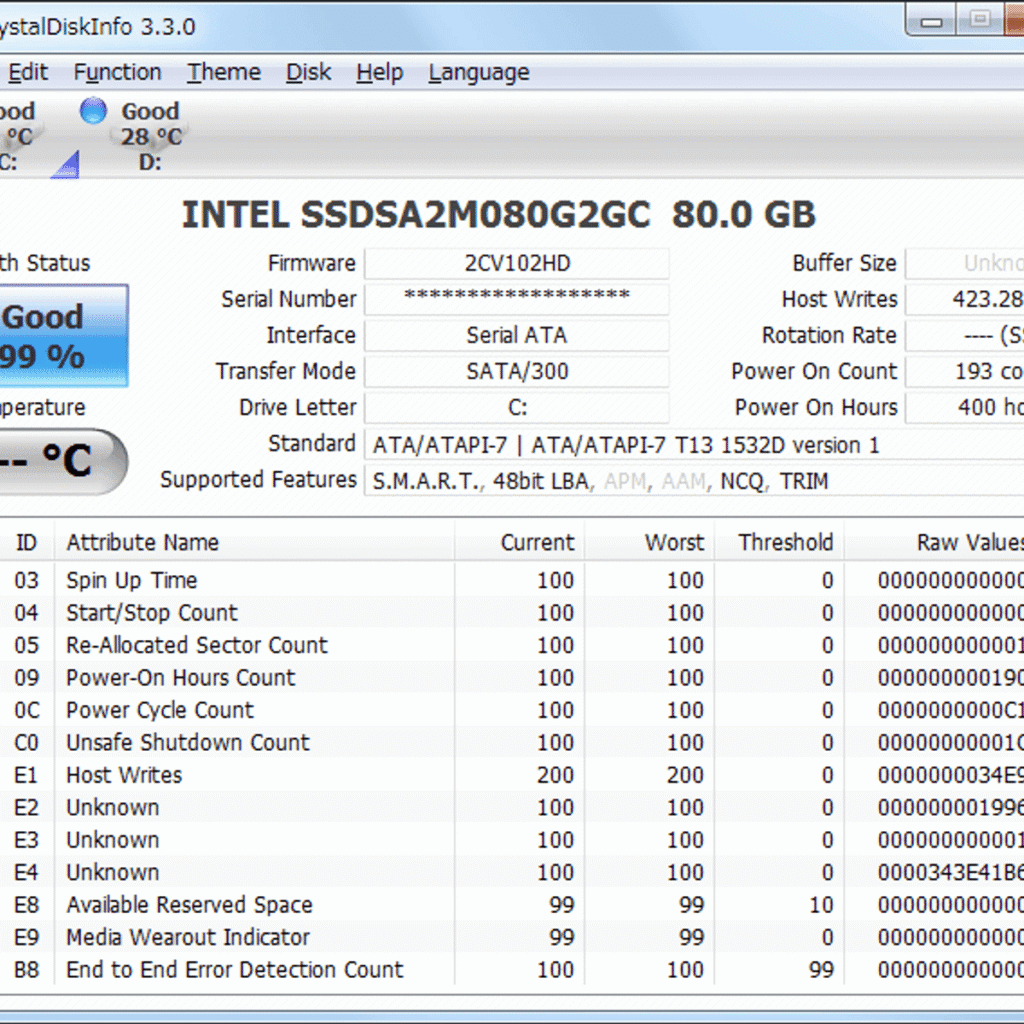
What to watch:
- “Caution” or “Bad” health status
- Reallocated sectors
- High temperature
- SSD wear percentage
✅ Best for: diagnosing unexplained slowness and crashes.
7) HWiNFO – Best Hardware Monitoring Tool
Use for: monitoring temperatures, clocks, voltage, throttling, fan speeds.
Why it’s important: Overheating causes thermal throttling (your PC slows down by design).
GeekMatrix tip:
If your laptop gets hot and slow during gaming/editing, check:
- CPU temps (90°C+ = likely throttling)
- GPU temps
- “Thermal throttling: YES”
✅ Best for: gamers, laptop users, and performance troubleshooting.
8) MSI Afterburner (Even If You Don’t Have MSI)
Use for: GPU monitoring, fan curves, FPS overlay, undervolting (advanced).
Why it helps: Stable GPU temps = stable FPS.
Beginner use:
Just enable:
- FPS
- GPU temp
- GPU usage
- CPU usage
✅ Best for: gaming optimization & tracking performance improvements.
9) Ninite – Fast Clean Installs (No Toolbars, No Junk)
Use for: installing/updating essential apps safely in bulk.
Why it’s useful: avoids fake download buttons, bundled bloat, and adware installers.
Great for:
- Chrome/Firefox/Brave
- VLC
- 7-Zip
- Discord/Zoom
- Notepad++
✅ Best for: clean setups and easy updates.
10) Everything (Voidtools) – Instant File Search
Use for: searching files faster than Windows Search.
Why it helps optimization: when you can find anything instantly, you waste less time and your PC feels more responsive.
It’s also great if you’ve reduced indexing to lower background disk usage.
✅ Best for: power users + students with lots of files.
11) O&O ShutUp10++ – Privacy + Background Reduction (Optional)
Use for: reducing Windows telemetry/background services (safe presets available).
Why it can help: less background chatter, fewer unwanted suggestions, cleaner system.
GeekMatrix recommendation:
Use only Recommended settings. Don’t turn everything off blindly.
✅ Best for: users who want a cleaner Windows experience.
12) PowerToys – Productivity + Mini Tools That Save Time
Use for: FancyZones, PowerRename, Image Resizer, Keyboard Manager.
Why it matters: Performance isn’t only FPS—it’s workflow speed.
Top features:
- FancyZones: perfect window layouts
- PowerRename: batch rename files
- Always on Top: keep one window pinned
✅ Best for: students, creators, office work, multitaskers.
13) Revo Uninstaller (Free) – Remove Bloat Properly
Use for: uninstalling programs + removing leftover files/registry entries.
Why Windows uninstall isn’t enough: Many apps leave junk behind (folders, services, startup tasks).
Use cases:
- old antivirus remnants
- broken toolbars
- game launchers you removed but still auto-start
✅ Best for: cleaning bloat safely.
14) Driver Store Explorer (RAPR) – Remove Old Driver Packages (Advanced)
Use for: cleaning out old driver versions that remain stored in Windows.
Why it matters: Over time, driver store can get large and messy.
⚠️ Only for advanced users:
- Remove unused drivers
- Keep current GPU/chipset drivers
✅ Best for: experienced users troubleshooting driver issues or reducing driver clutter.
15) Windows Built-in Tools (Yes, They’re Enough Sometimes)
People ignore built-in tools, but Windows actually includes strong optimization features.
Must-use built-ins:
- Task Manager → Startup Apps
- Storage Sense (auto cleanup)
- Optimize Drives (TRIM for SSD / defrag for HDD)
- Reliability Monitor (
perfmon /rel) for crash tracking - Windows Security (Defender)
✅ Best for: everyone. These should be your baseline.
The Best Tool Stack (Pick One)
✅ Beginner Stack (Safe + Simple)
- Microsoft PC Manager
- WizTree
- CrystalDiskInfo
Result: faster startup, more free disk space, health check done.
✅ Intermediate Stack (Best balance)
- Autoruns
- BleachBit
- HWiNFO
Result: fast boot + clean system + temperature control.
✅ Gamer/Creator Stack
- MSI Afterburner
- HWiNFO
- Process Explorer
Result: lower throttling, stable FPS, track bottlenecks.
Common Mistakes to Avoid (Seriously Important)
❌ 1) “One Click Booster” Apps from Random Websites
They often:
- show fake alerts
- install browser hijackers
- add startup services
- break Windows settings
❌ 2) “Registry Cleaner = More Speed”
Modern Windows doesn’t benefit much from registry cleaning. It can break apps and cause stability issues.
❌ 3) Disabling Random Services from YouTube “Tweaks”
Many “FPS tweak” videos disable services blindly. You might gain 1% but lose stability, printing, updates, or network reliability.
Quick Optimization Checklist (Use With These Tools)
✅ Weekly (5–10 minutes)
- Storage Sense / cleanup
- Disable new startup apps
- Update your apps (Ninite)
✅ Monthly (20 minutes)
- BleachBit safe cleanup
- Check drive health (CrystalDiskInfo)
- Check temps (HWiNFO)
- Review Reliability Monitor for errors
✅ Every 3 Months
- Audit installed programs
- Uninstall bloat with Revo
- Check driver stability (don’t chase every driver)
FAQ :
Q1: What’s the best free optimization tool for Windows 11?
For beginners: Microsoft PC Manager.
For advanced startup control: Autoruns.
For storage: WizTree.
Q2: Will optimization tools increase FPS in games?
Yes—if your issue is:
- thermal throttling
- too many background apps
- heavy startup processes
- low disk space
Tools like HWiNFO, Autoruns, and Afterburner help the most.
Q3: Should I use multiple cleaners together?
No. Use one cleaner (like BleachBit or built-in Storage Sense). Too many cleaners cause instability and waste time.
Q4: Is “RAM booster” useful?
Not really. Clearing RAM constantly can make Windows reload apps again (worse performance). Better to reduce startup bloat and background load.
Conclusion
If you want real speed, don’t chase fake “300% boost” apps. Build a small, trusted toolkit:
- WizTree (storage control)
- Autoruns (startup domination)
- CrystalDiskInfo (drive health)
- HWiNFO (thermals & throttling)
That’s the GeekMatrix way: clean + fast + stable.
Some other GEEKMATRIX Guides:
“Fix High RAM Usage in Windows 11/10”