
How To Optimize Your PC:
A slow computer is one of the biggest productivity killers. Whether you’re a student, a freelancer, a gamer, or an office worker, nothing is more frustrating than waiting for your PC to respond. Programs take years to open, the browser freezes, the cursor lags, and simple tasks feel like heavy punishment. The good news? You don’t always need a new laptop or desktop—most of the time, optimizing your existing PC can boost performance dramatically.
This comprehensive guide explains how to optimize your PC using safe, simple, and effective techniques. Whether you are using Windows 10 or Windows 11, these methods will help you speed up your computer, extend hardware life, and enjoy smoother performance.
Let’s dig in!
1. Remove Unnecessary Startup Programs
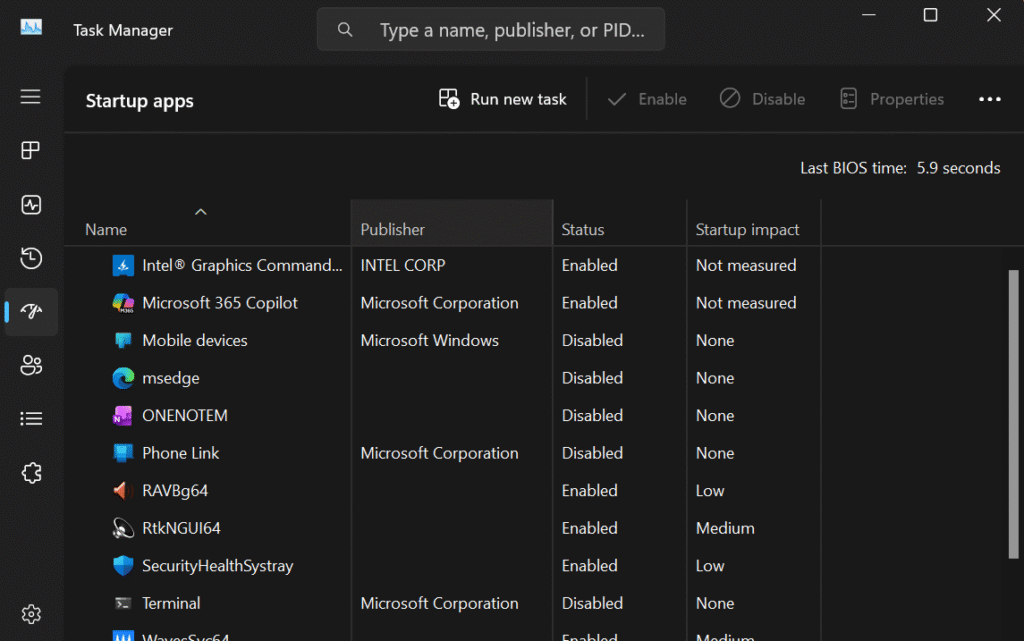
One major reason computers slow down is too many apps launching when Windows starts. These background programs consume RAM and CPU power even when you’re not using them.
How to Fix It:
- Press Ctrl + Shift + Esc to open Task Manager.
- Go to Startup Apps.
- Disable unnecessary programs (Spotify, Teams, Adobe Updater, etc.).
Why It Helps:
- Faster boot time
- Less background memory usage
- Smoother multitasking
For most users, startup optimization alone can reduce boot time by 40–70%.
2. Uninstall Bloatware & Unused Software
New PCs often come with unnecessary pre-installed apps called bloatware, which slow down the system. Older PCs also accumulate unused software over time.
How to Fix It:
- Open Settings → Apps → Installed Apps
- Uninstall apps you don’t need
- Remove trial versions, toolbars, and duplicate software
Warning:
Never uninstall software from Microsoft, Intel, NVIDIA, AMD, or your antivirus.
Clearing junk apps can free up 5–20 GB of storage and improve performance significantly.
3. Clean Temporary Files & System Junk
Windows stores a lot of temporary files, cache, logs, thumbnails, and update leftovers. These files slow down storage, especially on HDD drives.
How to Fix It (Quick Method):
- Press Windows + R
- Type cleanmgr
- Select system drive (usually C:)
- Check everything → Click OK
Advanced Method (Windows 10/11):
- Go to Settings → System → Storage
- Enable Storage Sense
- Use “Cleanup Recommendations” for deeper cleaning
This can free up 10–30 GB depending on usage.
4. Disable Heavy Visual Effects
Windows includes animations and visual effects that look attractive but slow down low-spec PCs.
How to Fix It:
- Search “Adjust the appearance and performance of Windows”
- Choose “Adjust for best performance”
- Or disable only:
- Animations
- Shadows
- Transparency
This tweak is extremely helpful for older PCs with limited RAM.
5. Update Windows, Drivers & Firmware
Outdated drivers and system updates often cause slow performance, crashes, and poor gaming speed.
Update Everything:
- Windows Update
- Graphics drivers (NVIDIA/AMD/Intel)
- Chipset drivers
- BIOS/UEFI (if needed)
Updated drivers improve:
- Stability
- Game performance
- App compatibility
- Security
6. Increase Virtual Memory (Paging File)
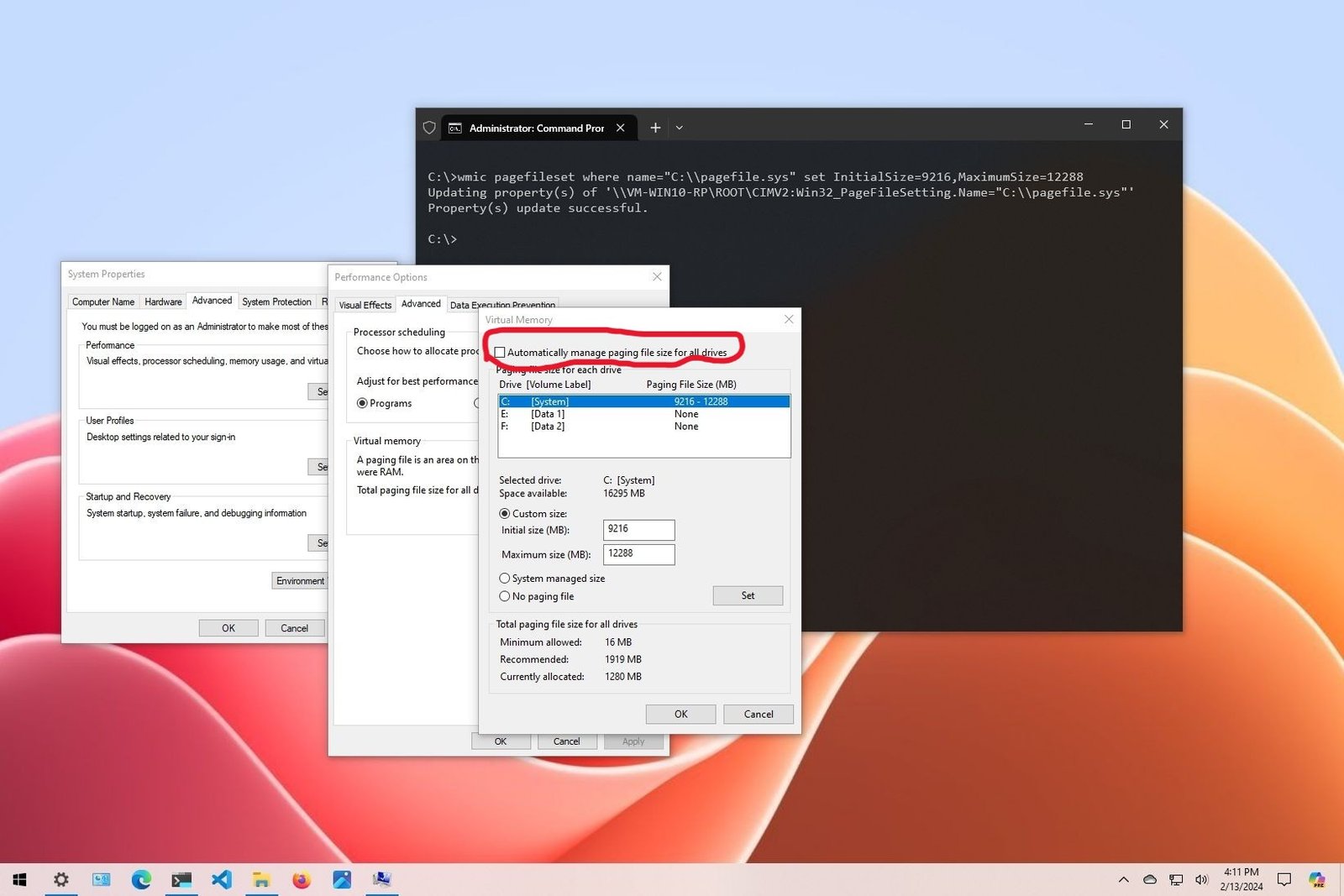
If your PC has 4–8 GB RAM, Windows may struggle to handle heavy tasks. Increasing virtual memory helps reduce lag and freezing.
How to Fix It:
- Search “Advanced System Settings”
- Go to Performance → Settings
- Select Advanced
- Under Virtual Memory → Click Change
- Set custom size:
- Initial size: 4096 MB
- Maximum size: 8192–16384 MB
This trick massively stabilizes multitasking on low-RAM systems.
7. Disable Background Apps
Many Windows apps run in the background, collecting data and consuming resources.
Disable Them:
- Go to Settings → Privacy → Background Apps
- Turn off all apps you don’t need running
8. Use an SSD Instead of HDD
If you’re still using a Hard Disk Drive, your system is already slow—no matter how much you optimize. SSDs are 10–15x faster and instantly boost:
- Boot speed
- App loading time
- System responsiveness
Installing Windows on an SSD is the #1 performance upgrade for any PC.
9. Upgrade RAM (If Necessary)
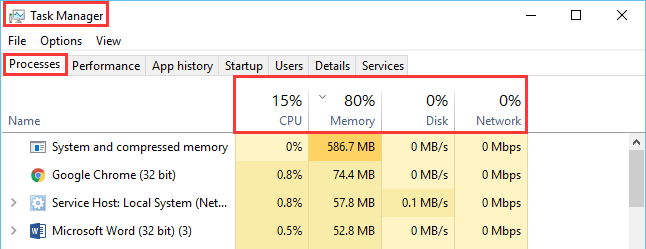
For smooth performance, recommended RAM:
- 8 GB — Basic use (browsing, office apps)
- 12–16 GB — Students and multitaskers
- 16–32 GB — Gaming, editing, programming
If your PC freezes frequently, upgrading RAM is the most effective fix.
10. Keep Your Desktop Clean
A cluttered desktop with too many icons slows down the Windows startup and File Explorer.
Fix:
- Keep only essential icons
- Store files in folders (Documents, Downloads, etc.)
11. Turn Off Search Indexing (For Low-End PCs)
Windows search indexing constantly scans folders, slowing down low-end processors.
How to Disable:
- Search “Services”
- Locate Windows Search
- Right-click → Properties
- Set Startup type: Disabled
This can reduce background CPU usage by up to 15–20%.
12. Stop Auto-Launching OneDrive
OneDrive syncing slows down older devices and internet browsing.
Fix:
- Open OneDrive settings
- Disable “Start OneDrive automatically”
- Pause syncing if not needed
13. Disable Power-Hungry Browser Extensions
Web browsers are often the real reason behind a slow computer.
Tips:
- Remove unnecessary Chrome extensions
- Enable hardware acceleration
- Clear browsing data weekly
- Don’t keep 20+ tabs open
Chrome especially consumes huge RAM.
14. Run Malware & Virus Scans
Some malware hides in background processes and slows down everything.
Use:
- Windows Defender (highly improved)
- Malwarebytes
- Kaspersky Free
A clean PC is always faster and more stable.
15. Optimize Gaming Performance
Gamers can get extra FPS using:
- GPU driver optimization
- Game Mode (Windows 10/11)
- Disabling unnecessary overlays (Discord, Steam, Xbox)
- Lowering graphics settings
- Using NVIDIA/AMD control panel tweaks
Modern gaming heavily relies on GPU optimization.
16. Keep Storage Below 70% Full
An SSD or HDD slows dramatically when almost full.
Ideal Storage Usage:
- Keep at least 20–25% free space
- Offload large files to external drives
- Use free cloud storage for backups
17. Reset Your PC (If Nothing Works)
If your PC is still slow even after optimizing everything, you may need to reset Windows.
Windows Reset Options:
- Keep my files + fresh OS
- Fully clean install (best performance)
This gives your PC a new life without buying new hardware.
1) Why is my PC slow even after I restart it?
Because the real slowdown often comes from startup apps, background services, low disk space, malware, or a failing HDD/SSD. Restarting helps temporarily, but the issues persist until the root cause is addressed.
2) What is the #1 best way to speed up a slow PC?
If your Windows is on an HDD, the #1 upgrade is moving to an SSD. If you already have an SSD, the biggest win is disabling unnecessary startup apps and cleaning the background load.
3) Is it safe to optimize Windows without reinstalling?
Yes—most performance gains come from safe settings like startup cleanup, storage cleanup, updating drivers, and removing bloat. Reinstalling is only needed if the system is severely corrupted or infected.
Conclusion
Optimizing your PC doesn’t have to be complicated. With the right steps—cleaning junk files, disabling unnecessary apps, upgrading hardware, optimizing Windows settings—you can dramatically increase speed, performance, and productivity. For most users, these tweaks will reduce lag, improve multitasking, and extend system lifespan.
Whether you’re working, studying, gaming, or running heavy applications, a properly optimized PC ensures smooth, fast, and efficient performance every single day.
Some other GEEKMATRIX Guides:
“Fix High RAM Usage in Windows 11/10”
“Best Free Windows Optimization Tools (2026)”