Increase FPS on Windows 11
Table of Contents
Introduction
Increasing FPS on Windows 11 isn’t just about lowering graphics settings—real performance comes from stable frame times, fewer background interruptions, correct GPU/CPU power behavior, and smart in‑game tuning. If your PC “should run games fine” but you still get stutter, low 1% lows, or random frame drops, this guide is for you.
This is a safe optimization guide: no sketchy “FPS booster packs,” no risky registry edits, and nothing that breaks Windows updates or security. Just the best practical steps used by gamers and builders in 2026.
1) Baseline First: Measure FPS and Stutter (Before You Change Anything)
To increase FPS on Windows 11 properly, you need a baseline so you can confirm improvements.
Quick FPS/Frame Time Tools
- Xbox Game Bar:
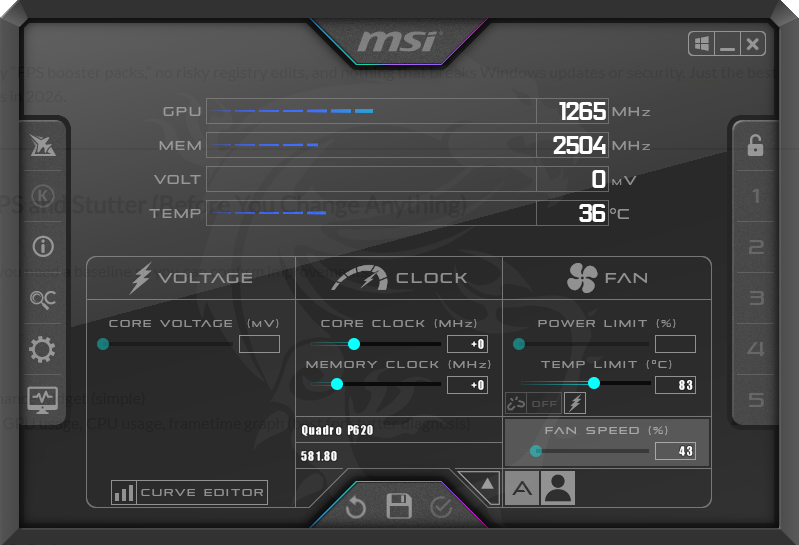
Win + G→ Performance widget (simple) - MSI Afterburner + RTSS: shows FPS, GPU usage, CPU usage, frametime graph (best for stutter diagnosis)
What to record
Run the same scenario (same map/area) for 2–3 minutes and note:
- Average FPS
- 1% Low FPS (smoothness)
- Frame time spikes (stutter)
Your goal is not only higher FPS, but smoother 1% lows.
2) Power Mode: The Most Overlooked FPS Killer (Especially Laptops)
If you want to increase FPS on Windows 11, you must stop Windows from power-limiting your CPU/GPU.
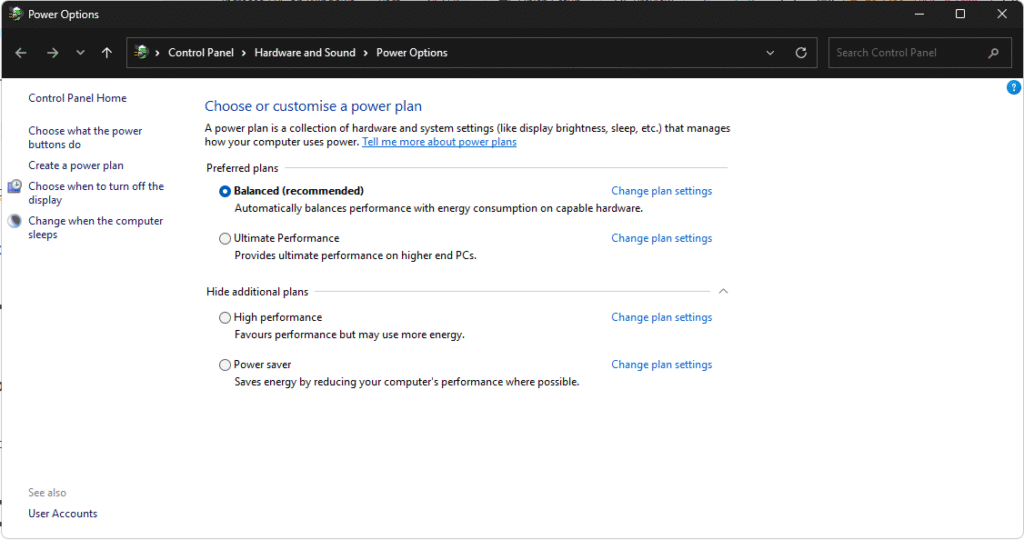
Set Power Mode to Performance
- Settings → System → Power & battery → Power mode
- Choose the best performance
Laptop users (important)
If your laptop has performance profiles (Lenovo Vantage, Armoury Crate, Omen, MSI Center):
- Select Performance/Turbo
- Keep it plugged in while gaming
Why this matters: Many “low FPS” cases are actually power limits, not weak hardware.
3) Windows 11 Gaming Settings You Should Enable
These are official Windows gaming features that can help increase FPS on Windows 11 or improve consistency.
✅ Game Mode: ON
- Settings → Gaming → Game Mode → ON
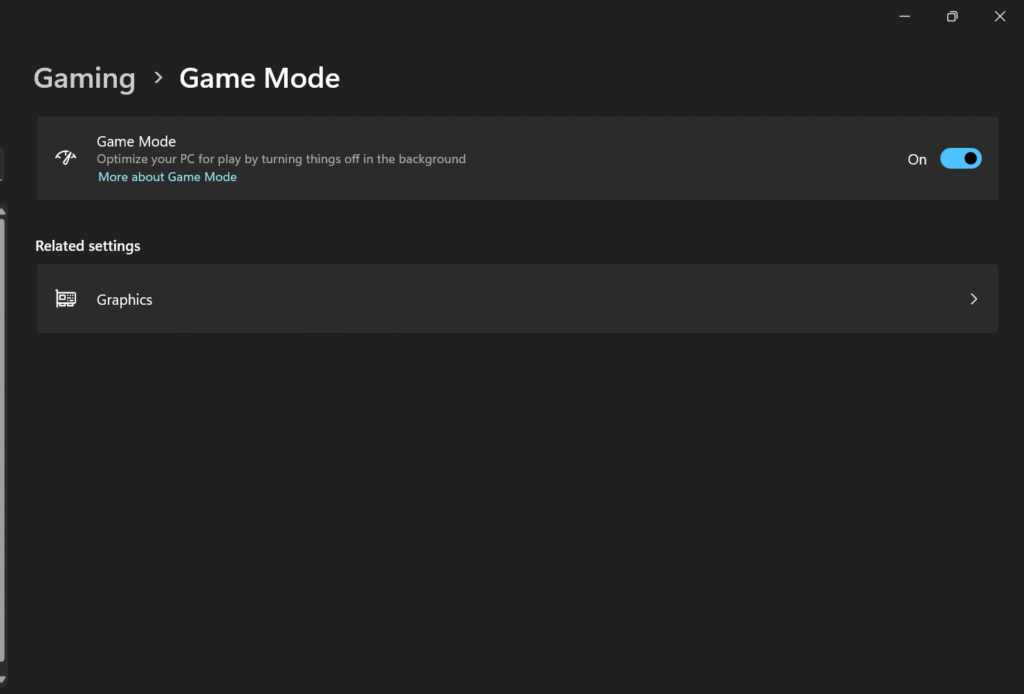
Game Mode prioritizes your game and reduces background interruptions.
✅ Graphics Settings (Critical)
- Settings → System → Display → Graphics Turn on (if available on your build/hardware):
- Optimizations for windowed games → ON
- Variable Refresh Rate (VRR) → ON (if supported)
- Hardware-Accelerated GPU Scheduling (HAGS) → ON (if supported)
If HAGS causes issues in a specific game, switch it OFF and test again—every PC is different.
4) Force Your Game to Use the Dedicated GPU (Dual GPU Systems)
If you’re on a laptop with Intel iGPU + NVIDIA/AMD dGPU, Windows sometimes launches games on the wrong GPU.
To increase FPS on Windows 11, force a high-performance GPU:
- Settings → System → Display → Graphics
- Add the game EXE → Options
- Select High performance
Signs of a wrong GPU:
- Very low FPS
- GPU usage is near zero
- The game feels “locked” at low performance
5) Drivers: The FPS Foundation (Do This the Right Way)
Bad drivers = stutter, crashes, low utilization, and poor 1% lows.
GPU drivers
- NVIDIA: install the latest stable Game Ready
- AMD: latest Adrenalin
- Intel Arc: latest Intel drivers
Pro driver tip
If your FPS suddenly got worse after a driver update:
- Roll back one version (stable driver > newest driver)
Drivers are a core part of how you increase FPS on Windows 11 without touching risky tweaks.
6) Kill Background Load: Startup Apps + Background Apps (Huge Gains)
A clean background environment is one of the best ways to increase FPS on Windows 11, especially for mid-range PCs.
Disable Startup Apps
- Ctrl + Shift + Esc → Task Manager
- Startup apps
- Disable junk like:
- Spotify / Discord auto-start (optional)
- Adobe updaters
- Printer utilities
- Unused launchers
✅ Keep:
- Windows Security
- GPU essentials
- Touchpad/keyboard drivers
Stop background apps (optional)
- Settings → Apps → Installed apps → (select app) → Background permissions → Never
7) Overlays: Convenient, But They Can Reduce FPS or Cause Stutter
Overlays can cause:
- FPS drops
- micro-stutter
- input lag
To increase FPS on Windows 11, disable overlays you don’t need:
Check:
- Xbox Game Bar overlay
- Discord overlay
- Steam overlay
- NVIDIA overlay/ShadowPlay
- AMD overlay
Rule: Keep only one overlay active if you’re troubleshooting performance.
8) NVIDIA Control Panel / AMD Adrenalin: Best FPS Settings (Safe)
NVIDIA (Global settings baseline)
Open NVIDIA Control Panel → Manage 3D settings
- Power management mode: Prefer maximum performance (or set per game)
- Low Latency Mode: ON (Ultra for esports if stable)
- Texture filtering – Quality: High performance (optional)
- V-Sync: OFF (use VRR instead)
AMD Adrenalin (Graphics)
- Radeon Anti-Lag: ON (competitive)
- Radeon Chill: OFF (unless power-saving)
- Texture filtering quality: Performance (optional)
These settings won’t magically double FPS, but they can stabilize performance and help increase FPS on Windows 11 in real gameplay.
9) The Real FPS Boost: In‑Game Settings That Matter Most
This is where you gain the most FPS.
Biggest FPS killers (lower these first)
- Ray Tracing (massive hit)
- Shadows (High → Medium gives big gains)
- Volumetrics / Fog
- Reflections
- Ambient Occlusion
- View Distance (depends on game)
Free clarity boosts (turn OFF)
- Motion Blur
- Film Grain
- Chromatic Aberration
Upscaling = massive FPS boost
To increase FPS on Windows 11, use:
- DLSS (NVIDIA RTX)
- FSR (AMD/NVIDIA/Intel)
- XeSS (Intel + supported)
Start with Quality, then Balanced if you need more FPS.
10) Display Settings: Refresh Rate + VRR + FPS Caps (Smoothness Hack)
Make sure Windows is set to the max refresh rate
- Settings → System → Display → Advanced display
Set your monitor to 144Hz / 165Hz / 240Hz, etc.
FPS cap strategy (for smooth frame pacing)
Cap slightly below refresh rate:
- 144Hz → cap 141 FPS
- 165Hz → cap 162 FPS
- 240Hz → cap 237 FPS
This often reduces stutter and improves consistency—one of the best tricks to increase FPS on Windows 11 “feel” even if average FPS doesn’t skyrocket.
Where to cap:
- In-game limiter (best)
- GPU driver limiter (good)
- RTSS limiter (best control, for advanced users)
11) Storage Optimization: Fix Texture Pop-In and Streaming Stutter
If you’re gaming on a hard drive, you’ll see:
- texture pop-in
- long loading
- stutters in open-world games
To increase FPS on Windows 11, move your game to an SSD if possible.
SSD tips
- Keep 15–20% free space on C:
- Avoid filling SSD to 95% (performance drops)
12) Thermals: Overheating = Instant FPS Loss (Throttling)
Thermal throttling is a hidden reason why people fail to increase FPS on Windows 11.
Signs of throttling
- FPS starts high, then drops after 10–20 minutes
- CPU/GPU clocks drop during gaming
- The laptop becomes extremely hot
Safe fixes
- Clean dust
- Improve airflow
- Use a laptop cooling pad
- Use performance fan profile (if available)
If you want, I can write a dedicated post on “Fix overheating and throttling for gaming.”
13) Network Lag vs FPS Lag (Don’t Confuse Them)
Online games can feel “laggy” even with high FPS, but that’s network latency.
To reduce network spikes
- Use Ethernet if possible
- Stop downloads/torrents
- Use 5GHz Wi‑Fi if Ethernet isn’t possible
This won’t increase FPS, but it improves gameplay feel.
14) Competitive Gaming Settings (Lower Input Lag)
To increase FPS on Windows 11 for esports titles, reduce latency:
Best practices
- Disable V-Sync (in-game)
- Use VRR if supported (G-Sync/FreeSync)
- Use FPS cap near refresh rate (Section 10)
- Use Low Latency modes (NVIDIA/AMD)
Also, set your mouse polling rate appropriately (1000Hz is fine for most systems).
15) What NOT to Do (Avoid These Fake FPS “Tweaks”)
If you want to increase FPS on Windows 11 safely, avoid:
- Random registry “FPS packs.”
- Disabling Windows security entirely
- Unknown “booster” apps
- Turning off Windows Update permanently
- Disabling random services from YouTube lists
These often create instability, crashes, and worse performance long-term.
16) GeekMatrix “Max FPS” Checklist (Copy/Paste)
If your goal is to increase FPS on Windows 11, do this in this order:
✅ Before you launch the game
- Power mode: Best performance
- Plug in laptop + performance profile
- Close heavy apps (browser tabs, sync tools)
- Disable unnecessary overlays
✅ Windows settings
- Game Mode: ON
- Graphics settings: VRR ON (if supported), HAGS ON (test), windowed optimizations ON
✅ GPU settings
- NVIDIA/AMD performance settings configured
- Game uses a high-performance GPU (laptops)
✅ In‑game
- Upscaling ON (DLSS/FSR/XeSS)
- Shadows/volumetrics lowered
- Motion blur OFF
- FPS cap slightly below refresh rate
Q1: Can Windows 11 settings actually increase FPS?
Yes. Correct power mode, GPU preference, and reducing background load can increase FPS and improve 1% lows, especially on mid-range PCs.
Q2: What gives the biggest FPS boost?
Upscaling (DLSS/FSR/XeSS) + lowering shadows/volumetrics usually gives the biggest real gains.
Q3: Why is my GPU usage low in games?
Often, power limits, a wrong GPU selection, a CPU bottleneck, or background tasks.
Q4: Does Game Mode help?
It can help with consistency and reduce background interference—good to keep ON.
Conclusion
To increase FPS on Windows 11, you don’t need risky tweaks. You need the correct setup: performance power mode, clean startup, smart Windows graphics settings, stable GPU drivers, and optimized in‑game settings (especially upscaling). Focus on stable frame times and 1% lows—that’s what makes games feel smooth.
Some other GEEKMATRIX Guides:
“Fix High RAM Usage in Windows 11/10”
“Best Free Windows Optimization Tools (2026)”
How to Optimize Your PC for Faster Performance (2025 Guide)
Speed up Windows 11 boot (2026 Guide): Cut Startup Time, Fix Slow Login, and Get a Faster PC