Speed up Windows 11 boot
Table of Contents
Introduction
Speeding up Windows 11 boot is one of the easiest ways to make your PC feel “new” again—because even if your system is powerful, a slow startup ruins the experience. If your laptop takes forever to reach the desktop, or your desktop loads quickly but becomes sluggish for 5–10 minutes after login, you’re not alone. Windows 11 often loads a lot of background apps, update services, and vendor utilities that quietly add seconds (or minutes) to your startup.
In this guide, you’ll learn safe, practical, real-world steps to reduce boot time, improve login speed, and stop those annoying “slow after boot” moments. No risky registry hacks, no sketchy booster apps—just clean, proven fixes.
1) First, Measure Boot Time (So You Know What Worked)
Before you try to speed up Windows 11 boot, you should measure your baseline.
Option A: Task Manager Startup Time (Simple)
- Press Ctrl + Shift + Esc → Task Manager
- Go to Startup apps
- Look at Startup impact (High/Medium/Low)
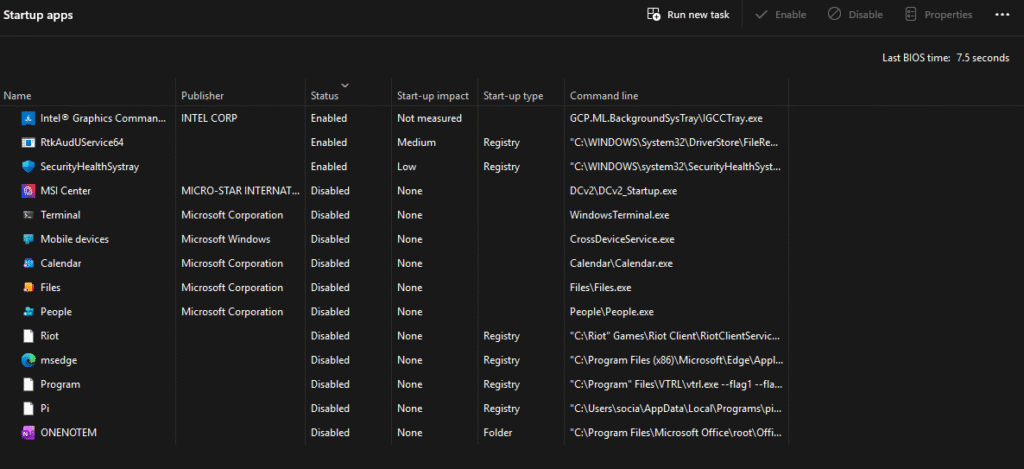
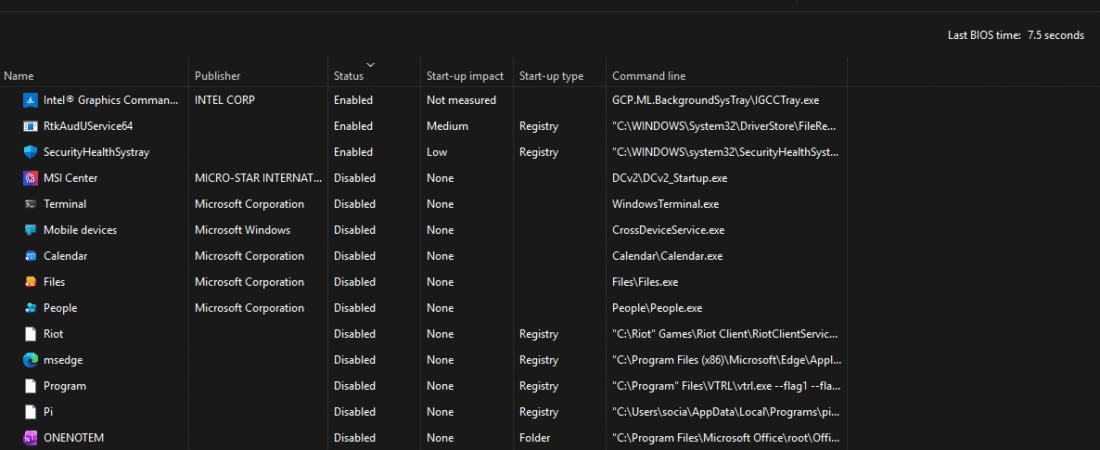
This doesn’t show exact seconds, but it instantly tells you which apps are slowing your startup.
Option B: Windows Boot Time via Event Viewer (More Accurate)
- Press Win + R → type
eventvwr→ Enter - Go to: Applications and Services Logs → Microsoft → Windows → Diagnostics-Performance → Operational
- Look for Event ID 100 (Boot Performance Monitoring)
It shows boot duration and what contributed to the slow startup. If you want to truly speed up Windows 11 boot, this view helps you target the exact offenders.
2) The Biggest Win: Disable Startup Apps (Do This First)
If you do only one thing to speed up Windows 11 boot, do this.
Steps
- Task Manager → Startup apps
- Disable anything you don’t need instantly at login, like:
- Spotify
- Discord auto-start (open manually when needed)
- Adobe update services
- Game launchers (Steam/Epic) (unless you game daily)
- Printer “helper” apps
- Random “tray utilities.”
✅ Keep enabled:
- Windows Security / Antivirus
- Touchpad/keyboard drivers (laptop)
- GPU driver essentials (NVIDIA/AMD/Intel core components)
Why this works: Every extra startup app competes for CPU + disk access at boot. Removing just 5–10 nonessential apps can speed up Windows 11 boot dramatically.
3) Clean Background “Autostart” You Don’t See (Advanced Startup Fix)
Sometimes you disable startup apps, but boot is still slow because tasks/services run invisibly.
Tool Method (Recommended): Autoruns (Sysinternals)
- Autoruns reveals hidden startup tasks beyond Task Manager.
- Look at Logon, Scheduled Tasks, and Services
- Disable only items you recognize and don’t need.
If you’re not comfortable with Autoruns, skip it and use the next safe option:
Safe Option: Disable Unneeded “Run at startup” Inside Apps
Many apps have their own setting:
- “Launch at startup.”
- “Start minimized”
- “Run inthe background.”
Turn those off—this also helps speed up Windows 11 boot without messing with Windows internals.
4) Turn Off “Startup Boost” Features in Apps (Browsers Love This)
Browsers are a sneaky reason boot feels heavy. They preload background processes even when you don’t open them.
Microsoft Edge
- Edge Settings → System and performance
- Disable:
- Startup boost
- Continue running background extensions and apps
Google Chrome
- Chrome Settings → System
- Disable:
- Continue running background apps when Chrome is closed
This alone can noticeably speed up Windows 11 boot, especially on 8GB RAM systems.
5) Fix “Slow After Boot” (When Desktop Loads but PC Lags)
Sometimes you boot quickly, but the first 3–10 minutes are painful. That’s usually:
- Windows Update activity
- search indexing
- cloud sync (OneDrive)
- heavy vendor utilities
Quick checks
- Open Task Manager → Processes
- Sort by Disk and CPU. If you see these after login:
- Windows Update
- Antimalware Service Executable
- SearchIndexer
- OneDrive sync
Let them settle once, then apply the right fix below to speed up Windows 11 boot consistently.
6) Storage Matters: HDD vs SSD (The Real Boot Speed Divider)
If Windows is installed on an HDD, no amount of tweaks will beat SSD performance.
Check your system drive type
- Task Manager → Performance → Disk
It will say SSD or HDD.
✅ If you’re on HDD:
- The #1 permanent way to speed up Windows 11 boot is upgrading to an SSD.
Even a budget SATA SSD is a huge jump. NVMe is even faster, but SATA already feels like a new PC.
7) Enable Fast Startup (Good for Desktops, Mixed for Some Systems)
Fast Startup is a Windows feature that saves some system state to speed up the next boot.
Enable it
- Control Panel → Power Options
- Choose what the power buttons do
- Click Change settings that are currently unavailable
- Enable Turn on fast startup
⚠️ If you dual-boot Linux or have weird driver issues, Fast Startup can cause problems. But for many users, enabling it can speed up Windows 11 boot.
8) Reduce Login Delay from Services (Do This Carefully)
Don’t disable random services. But you can reduce heavy vendor services.
Safe service targets (usually optional)
- Printer monitor services (if you rarely print)
- OEM update services (Dell/HP/Lenovo updaters) – keep them weekly/manual
- Third-party “helper” services from software you don’t use daily
Tip: If you’re unsure, set the startup type to Manual instead of Disabled.
This can speed up Windows 11 boot while keeping stability.
9) Keep Windows and Drivers Updated (Yes, It Can Improve Boot)
Outdated drivers can slow boot:
- storage controller drivers
- chipset drivers
- network drivers
- GPU drivers (sometimes)
What to update first
- Chipset drivers (laptop/motherboard manufacturer)
- Storage/NVMe driver (if applicable)
- BIOS/UEFI (only if there’s a known fix for stability/boot issues)
A stable driver stack improves startup reliability and can speed up Windows 11 boot by reducing delays and retries.
10) Disable Unnecessary Background Permissions (Windows 11 Apps)
Windows Store apps can run in the background and contribute to “post-boot lag”.
Steps
- Settings → Apps → Installed apps
- Select an app → Advanced options
- Background permissions: set to Never for apps you don’t need live.
This won’t always cut raw boot seconds, but it helps the “slow after boot” issue and can speed up Windows 11 boot in a real-world setting.
11) Fix Corrupted System Files (If Boot Time Suddenly Got Worse)
If your system used to boot fine and suddenly became slow, you may have corrupted system files or update issues.
Run SFC
Open Command Prompt as Admin and run:

Then run DISM

Restart afterward. This can stabilize startup behavior and sometimes speed up Windows 11 boot by stopping repeated background repair attempts.
12) Clean Your Disk (Low Storage = Slow Boot & Slow Updates)
If your system drive is almost full, Windows struggles with:
- updates
- caching
- pagefile operations
- temp file writes
Recommended free space
Keep at least 15–20% free on C:.
Quick cleanup
- Settings → System → Storage → Cleanup recommendations
- Turn on Storage Sense
This helps speed up Windows 11 boot indirectly because Windows has breathing room.
13) Check for Malware (Boot Slowdowns Can Be a Symptom)
If you see unknown processes or random startup entries, scan your PC.
Do this
- Windows Security → Full scan
- Optional: Microsoft Defender Offline scan
Malware can heavily impact startup and background disk usage. Cleaning it can dramatically speed up Windows 11 boot.
14) BIOS/UEFI Settings That Affect Boot (Advanced, Optional)
If you’re comfortable entering BIOS/UEFI:
Helpful settings (names vary)
- Fast Boot: Enable (if available)
- Boot order: ensure your main drive is first
- Disable unused boot devices (network boot, old drives)
This reduces the “pre-Windows” delay and can speed up Windows 11 boot by shaving seconds before Windows even loads.
15) Fix Long “Welcome” Screen / Slow Login Profile
If it’s stuck on “Welcome” or takes a long time after entering the password:
- too many startup apps
- profile issues
- OneDrive sync overload
- network delays
Try this
- Disable OneDrive auto-start (temporarily test)
- Reduce startup apps again (Section 2)
- Test with a new Windows user account:
- Settings → Accounts → Other users → Add account
If a new account boots faster, your profile is overloaded. Cleaning autostarts and background apps will speed up Windows 11 boot for your main user, too.
16) The “GeekMatrix Boot Speed Checklist” (Do This in Order)
If your goal is to speed up Windows 11 boot quickly, follow this order:
- Disable startup apps (Task Manager)
- Turn off browser startup boost/background apps
- Check disk type (upgrade HDD → SSD if possible)
- Enable Fast Startup (test)
- Clean storage (free 15–20% on C:)
- SFC + DISM repair if boot worsened suddenly
- Scan for malware
- Optional: BIOS Fast Boot and boot order
Do steps 1–3, and you’ll usually see the biggest difference.
Q1: How much can I speed up Windows 11 boot realistically?
Q1: How much can I speed up Windows 11 boot realistically?
Q2: Should I use “PC booster” software?
No. Many boosters add their own startup tasks. Your best approach to speed up Windows 11 boot is to reduce what loads, not add more software.
Q3: Why is boot fast but PC slow for 5 minutes?
That’s “post-boot load” (indexing, updates, Defender scans, cloud sync). Follow Sections 4–6, and you’ll speed up Windows 11 boot in real time, not just the boot timer.
Conclusion
If you want to speed up Windows 11 boot, the winning formula is simple: less startup junk + healthy storage + stable drivers + SSD. Start with the easy wins (startup apps + browser boost), then fix deeper causes like heavy background services or disk limitations.
Some other GEEKMATRIX Guides: