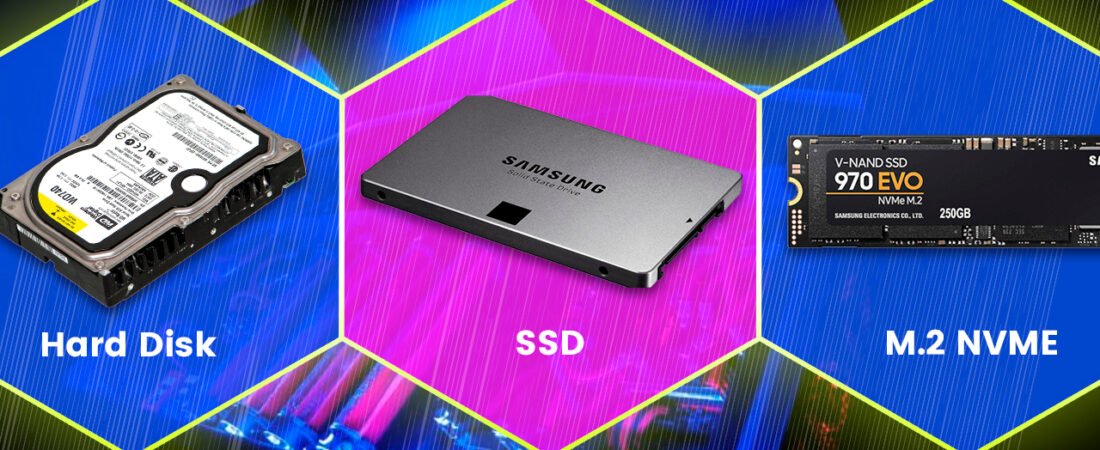
SSD vs HDD vs NVMe
Table of Contents
Introduction
SSD vs HDD vs NVMe is one of the most important decisions you can make for PC performance—because storage affects boot time, loading screens, game texture streaming, installs, updates, and how “snappy” Windows feels. You can have a strong CPU and GPU, but if your storage is slow or overloaded, your PC still feels laggy.
In this guide, you’ll learn what each drive type is, how they compare in real life (not just marketing numbers), and which option you should buy in 2026 for gaming and everyday use. By the end, you’ll know exactly what to choose based on your budget and your PC/laptop.
1) Quick Definitions (No Confusion)
Before we compare SSD vs HDD vs NVMe, let’s define them simply:
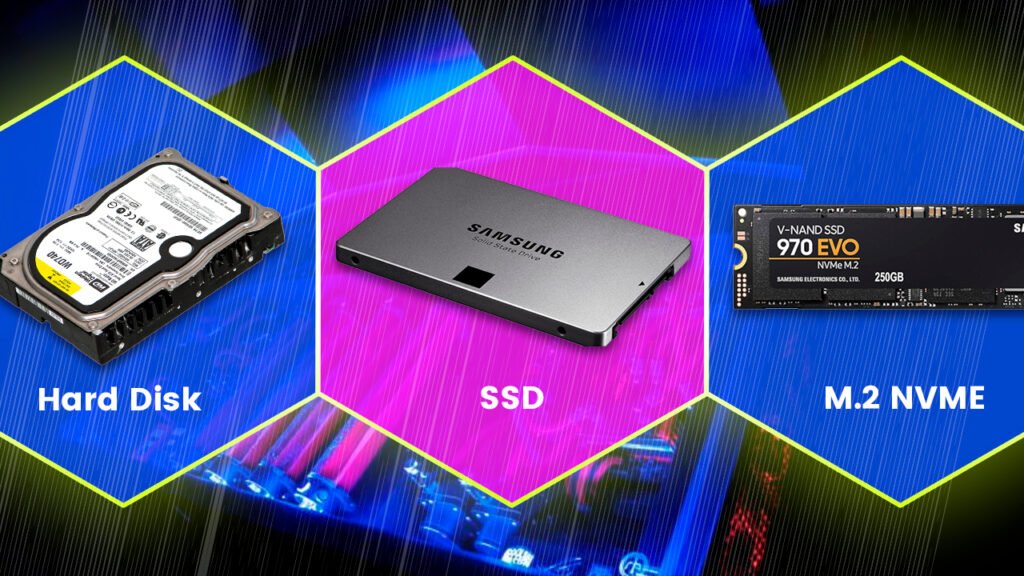
HDD (Hard Disk Drive)
- Old-school storage with spinning platters.
- Cheap per GB, large capacities (1TB–8TB+).
- Slow random access (opening many small files), can cause stutter in modern Windows.
SSD (Usually means SATA SSD)
- Solid-state storage using flash memory (no moving parts).
- Much faster than HDD for Windows boot and app loading.
- Commonly connects via SATA (2.5” SSD or SATA M.2).
NVMe SSD
- Also, an SSD, but uses a faster interface called NVMe over PCIe.
- Usually, a small stick-like drive called M.2 NVMe.
- The fastest option for loading, copying, and handling heavy games and projects.
2) The Real Difference: “Random Speed” Matters Most
When people compare SSD vs HDD vs NVMe, they often focus on big “MB/s” numbers. But in daily use and gaming, the biggest difference is:
✅ Random reads/writes (small file speed)
That’s what makes Windows feel fast, and games load quickly.
What you’ll feel in real life
- HDD: can feel slow opening apps, updating, and loading game maps
- SATA SSD: huge upgrade for everyday speed
- NVMe: fastest, especially for heavy games, editing, multitasking, and large installs
3) Performance Comparison (Real-World Experience)
Let’s break down SSD vs HDD vs NVMe the way gamers and normal users actually experience it.
Boot time (Windows startup)
- HDD: slow boot, long “loading” screens
- SATA SSD: boots fast, feels smooth
- NVMe: boots very fast (often similar to SATA SSD, but still slightly better)
Truth: Moving Windows from HDD → SSD is the biggest boot upgrade. Going SATA SSD → NVMe helps, but not as dramatically for boot alone.
App launching & multitasking
- HDD: stutters when many apps open
- SATA SSD: instant response, smooth multitasking
- NVMe: best for heavy workflows (multiple apps + big files)
Gaming: loading screens and texture streaming
- HDD: long loading, texture pop-in in open-world games
- SATA SSD: major improvement, fewer stutters
- NVMe: best for modern open-world games that stream assets fast
So if you’re asking SSD vs HDD vs NVMe for gaming: SSD already changes everything; NVMe is a “premium smoothness” upgrade.
4) FPS vs Loading: Does Storage Increase FPS?
A common question in SSD vs HDD vs NVMe discussions:
Will SSD/NVMe increase FPS?
- Average FPS: usually no, not directly
- Stutter / 1% lows: often yes, especially if the game streams data
- Loading times: yes, massive improvement from HDD → SSD
So storage is about smoothness, loading, and reducing stutter—not turning 60 FPS into 120 FPS.
5) Price & Value in 2026 (What Makes Sense)
In most markets, HDD is still cheapest per GB, then SATA SSD, then NVMe (though NVMe is often very affordable now).
For SSD vs HDD vs NVMe value:
- HDD wins on mass storage (movies, backups)
- SATA SSD wins on budget upgrade
- NVMe wins on best overall performance
Best bang-for-buck upgrade for a slow PC:
✅ Replace HDD system drive with any SSD (even SATA)
6) Which One Should You Buy? (Simple Buying Guide)
Let’s make SSD vs HDD vs NVMe decision easy.
Choose HDD if:
- You need cheap storage for:
- movies
- backups
- photos archives
- game recordings
- You don’t care about loading time much
Best use: secondary storage (not for Windows).
Choose SATA SSD if:
- You want the best budget performance upgrade
- Your PC/laptop doesn’t support NVMe
- You want a fast boot and a smooth Windows
Best use: Windows drive + regular apps + light gaming.
Choose NVMe if:
- Your motherboard/laptop supports M.2 NVMe
- You play modern games (open-world / big textures)
- You edit video, record gameplay, or move big files often
- You want the fastest overall feel
Best use: Windows + games + heavy workloads.
That’s the core SSD vs HDD vs NVMe choice.
7) Best Setup (Recommended Storage Layouts)
✅ Best Budget Setup (Gaming + Daily)
- 500GB or 1TB SATA SSD for Windows + apps
- 1TB–2TB HDD for storage (videos, backups)
✅ Best Balanced Setup (Most People)
- 1TB NVMe SSD for Windows + favorite games
- Optional: 2TB HDD for archive storage
✅ Best Performance Setup (Creators + Gamers)
- 1TB–2TB NVMe for OS + main games
- Second NVMe/SATA SSD for recordings/projects
- HDD for backup/archive
If you want the smoothest experience in SSD vs HDD vs NVMe, a 1TB NVMe main drive is the sweet spot.
8) Compatibility Check (Don’t Buy the Wrong Drive)
Before you buy in the SSD vs HDD vs NVMe decision, check your system:
Desktop PCs
- If your motherboard has an M.2 slot, it may support NVMe.
- Some M.2 slots support SATA only—so confirm in the motherboard specs.
Laptops
- Many laptops support:
- 2.5” SATA SSD (classic)
- M.2 NVMe (modern)
- Some have only one slot, so upgrade carefully.
How to check quickly (Windows)
- Task Manager → Performance → Disk
It often shows the drive type as SSD/HDD, but it won’t always confirm NVMe.
If you can, check your laptop model specs or motherboard manual.
9) Storage Capacity: How Much Do You Need?
A key part of SSD vs HDD vs NVMe is choosing the right size.
For Windows + basic apps
- 256GB: minimum (tight)
- 512GB: usable
- 1TB: comfortable
For gaming
Modern games are huge.
- 512GB: fills fast
- 1TB: recommended minimum for gamers
- 2TB: ideal if you keep many games installed
For creators (editing/recording)
- 1TB+ recommended, plus a separate drive for raw footage
10) Endurance & Reliability (Will SSD Wear Out?)
People worry SSDs “die fast.” In reality, modern SSDs are designed for years of normal use.
For SSD vs HDD vs NVMe reliability:
- HDD has moving parts → more sensitive to drops and vibration
- SSD/NVMe has no moving parts → more shock resistant
Tips to improve drive lifespan
- Keep 15–20% free space on SSD
- Avoid filling to 99%
- Keep temperatures reasonable (NVMe can run hot in small cases)
In normal home/gaming use, SSD endurance is rarely a problem.
11) Gaming-Specific Recommendations (Best Choice per Gamer Type)
Esports gamer (Valorant/CS2/Fortnite)
For FPS games, storage won’t massively increase average FPS, but it helps with:
- faster loading
- fewer stutters on HDD systems
Best pick: SATA SSD minimum; NVMe is nice.
AAA open-world gamer (Cyberpunk, Warzone, Starfield-type games)
These games stream assets heavily.
Best pick: NVMe if possible. This is where SSD vs HDD vs NVMe becomes very noticeable.
Casual gamer (few games installed)
Best pick: 512GB–1TB SATA SSD is a great value.
12) Upgrade Path: What to Do If You’re on HDD Today
If your PC still runs Windows on HDD, the answer to SSD vs HDD vs NVMe is simple:
✅ Get an SSD for your Windows drive.
What you gain instantly
- faster boot
- faster app loading
- smoother updates
- less “100% disk usage” suffering
Should you reinstall Windows?
You have two options:
- Clone HDD to SSD (fastest, keeps everything)
- Fresh install Windows (cleanest, best long-term)
If your system is already messy, a fresh install + SSD feels like a brand-new machine.
13) NVMe vs SATA SSD: Is NVMe Worth It?
This is the most common follow-up to SSD vs HDD vs NVMe.
NVMe is worth it if:
- Price difference is small
- You install/move big games often
- You do content creation (editing/recording)
- You want best future-proofing
SATA SSD is enough if:
- You mainly browse, study, do office work
- You play lighter games
- Your system doesn’t support NVMe
- You want cheapest reliable speed upgrade from HDD
Reality: The biggest jump is HDD → any SSD. NVMe is the “extra edge.”
14) Common Mistakes to Avoid
When choosing SSD vs HDD vs NVMe, avoid these:
❌ Buying tiny storage
A 240GB/256GB SSD fills fast in 2026. Aim 512GB minimum, 1TB for gamers.
❌ Installing Windows on HDD and games on SSD (wrong order)
Always put Windows on SSD first. That’s where the big improvement comes from.
❌ Filling SSD to 95–99%
Performance can drop when SSD is almost full.
❌ Buying M.2 without confirming NVMe support
M.2 can be SATA or NVMe. Confirm before buying.
15) Quick Decision Table (In Words)
If you’re still confused about SSD vs HDD vs NVMe, use this quick rule:
- Want the cheapest bulk storage? → HDD
- Want the best upgrade for speed on a budget? → SATA SSD
- Want the best performance and modern gaming smoothness? → NVMe
Frequently Asked Questions:
1) SSD vs HDD vs NVMe: which is best for gaming?
NVMe is the best overall for modern games and loading, but any SSD (even SATA) is already a huge improvement over HDD.
2) Will upgrading to NVMe increase my FPS?
Usually, it improves loading and reduces stutter in asset-heavy games, but average FPS depends more on CPU/GPU.
3) Is HDD still worth it in 2026?
Yes—for cheap storage and backups. But it’s not ideal for Windows as a system drive anymore.
4) How do I know if my laptop supports NVMe?
Check the laptop model specs or look for an M.2 NVMe slot in the documentation. Some laptops support only SATA M.2.
Conclusion
The SSD vs HDD vs NVMe decision becomes easy when you focus on your goal:
- If your PC is slow, any SSD is the biggest upgrade
- If you want the best modern experience, NVMe is the best choice
- If you need cheap storage, an HDD is still useful as a secondary drive
For most GeekMatrix readers in 2026, the best recommendation is: ✅ 1TB NVMe (if supported) or 1TB SATA SSD (if NVMe isn’t supported), plus an HDD only if you need extra storage.
Some other GEEKMATRIX Guides:
“Fix High RAM Usage in Windows 11/10”
“Best Free Windows Optimization Tools (2026)”
How to Optimize Your PC for Faster Performance (2025 Guide)
Speed up Windows 11 boot (2026 Guide): Cut Startup Time, Fix Slow Login, and Get a Faster PC