1ms response time:
Table of Contents
You just dropped $500 on a brand new, top-of-the-line 240Hz OLED or Fast-IPS gaming monitor. Right there on the box, printed in massive reflective lettering, is the holy grail of competitive gaming: 1ms Response Time.
You plug it in, boot up Valorant or CS2, and immediately open the monitor’s On-Screen Display (OSD). You find the setting called “Overdrive” or “Response Time” and crank it all the way up to “Extreme” or “Fastest.” After all, you paid for 1ms, so you want 1ms, right?
Then you jump into a match, whip your mouse to check a corner, and notice something horrible. Every time you turn, the edges of the walls and character models leave a glowing, ugly, discolored trail. The game looks awful.
Your hardware isn’t broken. You just fell for the oldest trick in the display industry.
At GeekMatrex, we read the fine print so you don’t have to. Today, we are going to explain why “1ms” is a marketing lie, why your “Extreme” settings are ruining your visual clarity, and exactly how to tune your monitor like a display engineer.
Section 1: The Two Types of “1ms” (GTG vs. MPRT)
To understand why your monitor looks bad, you have to understand how manufacturers arrive at that “1ms” number. In 2026, there are two distinct ways to measure response time, and brands intentionally blur the lines between them.
1. Grey-to-Grey (GTG)
This is the physical time it takes for a single pixel to transition from one shade of grey to another shade of grey.
- The Reality: While modern Fast-IPS and OLED panels are incredibly quick, achieving a true 1ms GTG average across all color transitions is nearly impossible for LCD panels. When a company claims “1ms GTG,” they usually mean they achieved 1ms on one specific, highly favorable color transition under extreme laboratory conditions. The actual average is often closer to 3ms or 4ms.
2. Moving Picture Response Time (MPRT)
This is how long a pixel remains visible on the screen.
- The Trick: To hit “1ms MPRT,” manufacturers use a technology called Backlight Strobing (often branded as ELMB, DyAc, or Motion Blur Reduction). The monitor’s backlight violently flickers off and on between frame refreshes.
- The Reality: While strobing does reduce perceived motion blur, it absolutely destroys your monitor’s maximum brightness and can cause severe eye strain or headaches.
If your box says “1ms MPRT,” they are selling you a software trick, not raw panel speed.
Section 2: The “Overdrive” Trap and Inverse Ghosting
So, how do manufacturers force an LCD panel to hit those unrealistic GTG speeds for the marketing department? They use a brute-force method called Overdrive.
Overdrive sends extra voltage to the pixels to make them change color faster. Most gaming monitors have three or four Overdrive levels (e.g., Off, Normal, Fast, Extreme).
Here is what actually happens when you select “Extreme” to get your advertised 1ms response time:
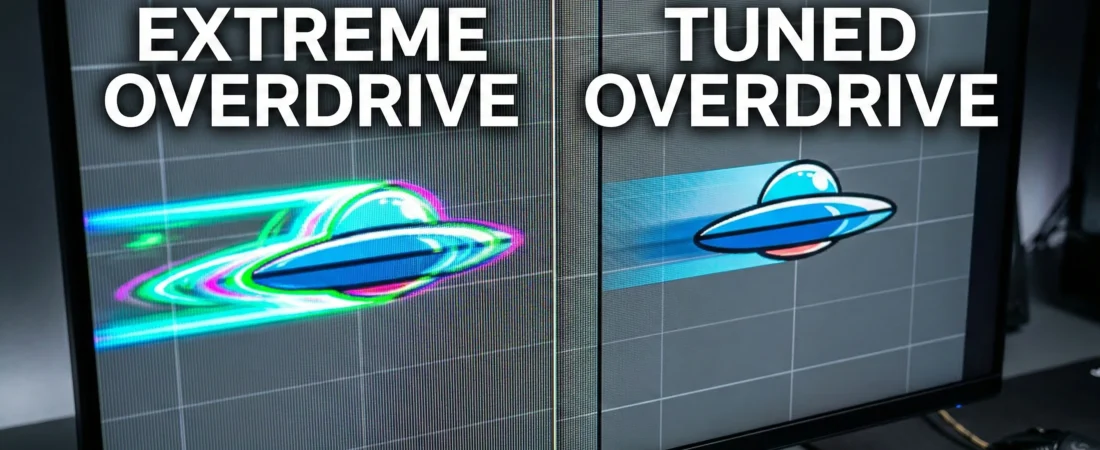
The monitor sends too much voltage to the pixel. The pixel accelerates so fast that it shoots right past the target color, realizes its mistake, and has to bounce back to the correct color.
This creates a visual artifact known as Pixel Overshoot or Inverse Ghosting.
Instead of a smooth, dark trail behind a moving object (normal ghosting), overshoot creates a bright, glowing “corona” or neon-colored trail. It is incredibly distracting and makes tracking moving targets in first-person shooters actively harder.
The “Extreme” Overdrive setting exists for one reason: so the manufacturer can pass a synthetic 1ms lab test. It is virtually never meant to be used by actual human beings playing video games.
Section 3: The GeekMatrex Tuning Protocol
If you can’t trust the box, and you can’t trust the “Extreme” setting, how do you configure your monitor? You have to test it with your own eyes.
Here is the exact protocol display reviewers use to find the perfect Overdrive setting.
Step 1: Prep Your Environment
- Ensure your monitor is running at its maximum refresh rate in Windows (Settings > System > Display > Advanced Display).
- Turn off any Backlight Strobing settings (ELMB, DyAc, “1ms Mode”) in your monitor’s OSD. You want pure, unadulterated panel performance.
- Turn off Variable Refresh Rate (G-Sync/FreeSync) just for this test, as VRR can alter overdrive behavior.
Step 2: The Blur Busters UFO Test
- Open your web browser and go to TestUFO.com/ghosting.
- This site will display several alien spaceships moving horizontally across your screen at your monitor’s exact refresh rate.
- Follow the moving UFOs with your eyes.
Step 3: Dialing it In
Now, open your monitor’s OSD and navigate to the Overdrive/Response Time setting.
- Set it to OFF (or the lowest setting): Look at the UFOs. You will likely see a blurry, smeared trail behind them. The pixels are transitioning too slowly.
- Set it to EXTREME (or the highest setting): Look at the UFOs again. You will see a bright, glowing, or discolored outline leading or trailing the alien. The pixels are overshooting.
- Set it to the MIDDLE settings (Normal / Fast): Toggle between the middle options until you find the setting where the UFO is the sharpest, with the least amount of blurry smearing behind it, and absolutely zero glowing overshoot.
The Golden Rule: For 95% of gaming monitors on the market in 2026, the second-highest setting (usually labeled “Fast” or “Advanced”) is the optimal sweet spot. It provides the best balance of actual speed without introducing visual artifacts.
Conclusion: Play the Game, Not the Spec Sheet
The monitor industry is built on spec-sheet warfare. Brands know that gamers will buy the box that says “1ms” over the box that says “3ms,” even if the 3ms monitor looks vastly superior in motion.
Stop chasing the marketing claims. Turn off “Extreme” overdrive, disable the headache-inducing backlight strobing, and use the UFO test to find what your specific panel is actually capable of delivering.
By prioritizing visual clarity over a fake 1ms sticker, you will find tracking enemies easier, your aim will improve, and your $500 investment will finally look like it’s supposed to.
What monitor are you currently using, and what Overdrive setting did you end up landing on after running the UFO test? Drop your model and settings in the comments below to help out other GeekMatrex readers with the same hardware!
Some other GEEKMATREX Guides:
Is Process Lasso Safe? The Truth About Bans, Viruses, and System Stability (2026 Review)
Stop Using Game Boosters: Why Process Lasso is the Only Tool You Need (2026 Guide)
Stop Your Phone Overheating: The Technical Guide to Fixing Android AI Battery Drain Fix (2026)
Stop CPU Core Parking: How to Unlock Ultimate Performance Windows 11 (Free Tool)
Intel vs AMD in 2026: Which CPU Is Better for Gaming, Work, and Budget Builds?
Android Optimization in 2026: Make Any Phone Faster, Smoother, and More Battery-Friendly
How to Remove Bloatware Safely on Android (No Root) — 2026 Step‑By‑Step Guide
“Fix High RAM Usage in Windows 11/10”
“Best Free Windows Optimization Tools (2026)”
Fix Android Wi-fi Keeps Disconnecting (2026): Causes + Step‑by‑Step Solutions That Work