Alt tab black screen fix Windows 11:
Table of Contents
You are in the middle of a tense ranked match. You die, so you hit Alt-Tab to quickly check Discord or change your Spotify playlist.
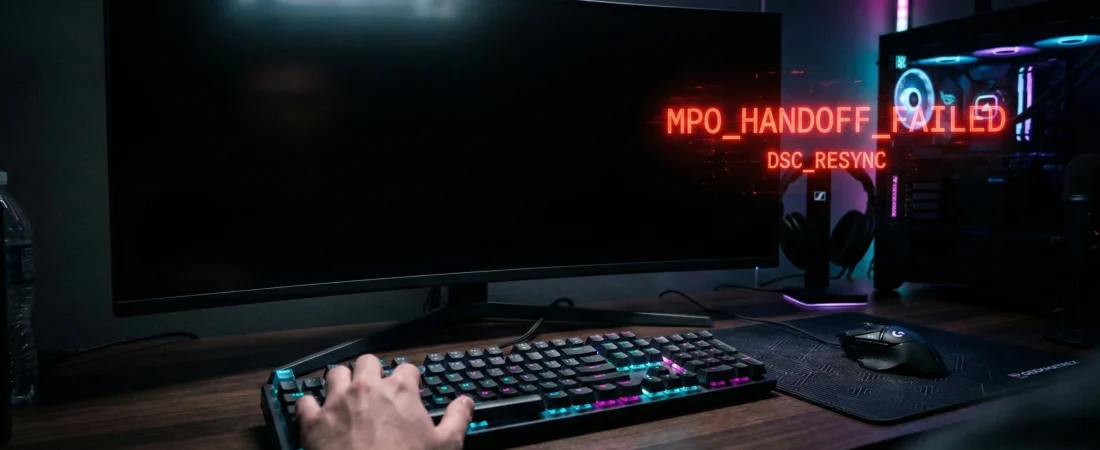
Suddenly, your monitor loses its signal. The screen goes completely pitch black. Three, four, five agonizing seconds pass before your Windows desktop finally stutters into view. By the time you switch back to the game, the next round has already started and you missed the buy phase.
If you have a high-end gaming PC and a high-refresh-rate monitor, you have likely experienced this infuriating bug. Hardware forums are filled with users blaming NVIDIA or AMD drivers, but the truth is much deeper.
The Alt-Tab black screen is caused by a fundamental conflict between your monitor’s hardware and the Windows 11 display manager. Today, we are going to break down the two main culprits—MPO and DSC—and show you exactly how to fix them.
The Software Culprit: Multi-Plane Overlay (MPO)
Windows 11 uses the Desktop Window Manager (DWM) to render your screen. To improve performance and reduce CPU overhead, Microsoft heavily relies on a feature called Multi-Plane Overlay (MPO).
In theory, MPO allows your graphics card to composite different layers of your screen (like your game, the Windows taskbar, and a pop-up notification) independently without forcing the GPU to redraw the entire screen.
Why it fails: When you play a game in “Exclusive Fullscreen” mode, the game bypasses the DWM and talks directly to the graphics card. When you press Alt-Tab, the GPU has to violently hand control back to the Windows DWM.
In recent Windows 11 updates (especially 24H2), MPO struggles with this WDDM (Windows Display Driver Model) handoff. The GPU gets confused about which “plane” is supposed to be on top, resulting in driver timeouts, massive stuttering, or a complete black screen while the graphics driver forcefully resets itself.
The Fix: The GeekMatrex MPO Killswitch
For most users, completely disabling MPO in the Windows Registry instantly fixes the Alt-Tab delay. Since we hate manual registry editing, we wrote another zero-bloat .bat file to do it for you.
How to disable MPO:
- Open Notepad on your PC.
- Paste the following code:
@echo off
title GeekMatrex MPO Disable Tool
color 0C
echo [!] Disabling Windows Multi-Plane Overlay (MPO)…
reg add “HKEY_LOCAL_MACHINE\SOFTWARE\Microsoft\Windows\Dwm” /v OverlayTestMode /t REG_DWORD /d 5 /f
echo.
echo SUCCESS: MPO has been disabled.
echo Please RESTART your computer for the changes to take effect.
pause
exit
- Right-click the file, select Run as Administrator, and restart your PC.
(Note: If you ever want to re-enable MPO, simply change /d 5 in the code to /d 0 and run it again).
The Hardware Culprit: Display Stream Compression (DSC)
If you disabled MPO and your screen is still going black when you Alt-Tab, your issue is hardware-based. You are being bottlenecked by your display cable.
Modern monitors are incredibly demanding. If you have a 4K 144Hz monitor, or a 1440p 240Hz/360Hz OLED, the sheer amount of raw pixel data traveling from your GPU to your monitor exceeds the physical bandwidth limit of a standard DisplayPort 1.4 cable.
To solve this, the industry created Display Stream Compression (DSC). It is a visually lossless compression algorithm that squishes the data down so it can fit through the cable.
Why it fails: When DSC is active, your monitor and GPU are perfectly synced in a compressed state. However, when you Alt-Tab out of a game running at a different resolution or refresh rate than your desktop, the compression algorithm “breaks.” The monitor physically has to drop the signal, renegotiate the DSC handshake with the graphics card, and turn back on.
That physical handshake is the 5-second black screen. Nvidia and AMD cannot patch this with a driver update; it is a physical limitation of the display protocol.
The Fix: Bypassing the Handshake
If you are dealing with a DSC black screen, you have three options to bypass the handshake:
1. The “Borderless Windowed” Method (Easiest) Instead of running your games in “Exclusive Fullscreen,” change the in-game video settings to Borderless Windowed or Windowed Fullscreen. Because Borderless Windowed forces the game to run inside the Windows DWM environment alongside your desktop, the DSC compression never has to break or renegotiate when you Alt-Tab.
2. Match Your Refresh Rates Perfectly If you absolutely must play in Exclusive Fullscreen for maximum FPS, you need to ensure your in-game refresh rate perfectly matches your Windows desktop refresh rate. If Windows is set to 240Hz, but your game is locked to 144Hz, Alt-Tabbing will trigger a brutal DSC black screen as the monitor changes speeds.
3. Upgrade to HDMI 2.1 If your monitor and graphics card both support it, ditch the DisplayPort 1.4 cable. HDMI 2.1 has significantly higher raw bandwidth (48 Gbps vs DP 1.4’s 32 Gbps). In many cases, switching to an ultra-high-speed HDMI 2.1 cable allows the data to flow uncompressed, turning DSC off entirely and eliminating the black screen bug forever.
Conclusion: Stop Waiting on Microsoft
Don’t wait around for Microsoft or NVIDIA to magically patch away hardware limitations and display manager conflicts.
By disabling MPO in your registry and managing how your monitor handles compression, you can take back control of your system. You should be able to instantly swap to Discord and back without feeling like your graphics card just died.
Did the MPO registry tweak fix your Alt-Tab issues, or did you have to switch to an HDMI 2.1 cable to beat the DSC bottleneck? Let the GeekMatrex community know what monitor you are running in the comments below!
Some other GEEKMATREX Guides:
Is Process Lasso Safe? The Truth About Bans, Viruses, and System Stability (2026 Review)
Stop Using Game Boosters: Why Process Lasso is the Only Tool You Need (2026 Guide)
Stop Your Phone Overheating: The Technical Guide to Fixing Android AI Battery Drain Fix (2026)
Stop CPU Core Parking: How to Unlock Ultimate Performance Windows 11 (Free Tool)
Intel vs AMD in 2026: Which CPU Is Better for Gaming, Work, and Budget Builds?
Android Optimization in 2026: Make Any Phone Faster, Smoother, and More Battery-Friendly
How to Remove Bloatware Safely on Android (No Root) — 2026 Step‑By‑Step Guide
“Fix High RAM Usage in Windows 11/10”
“Best Free Windows Optimization Tools (2026)”
Fix Android Wi-fi Keeps Disconnecting (2026): Causes + Step‑by‑Step Solutions That Work