How to Fix System UI Not Responding:
Table of Contents
Few smartphone errors are as disruptive as the dreaded “System UI isn’t responding” freeze loop. The System UI (User Interface) is the core Android background process that renders your notification shade, status bar icons, lock screen, and navigation buttons. When it drops frames, runs out of memory, or encounters a software conflict, your entire interface locks up, rendering the touchscreen non-responsive.
If you are dealing with constant system loops or temporary screen freezes, this guide provides a structured technical path detailing exactly how to fix system ui not responding errors on modern Android devices without losing your personal data.
What Causes the System UI to Fail?
Before applying software changes, it helps to understand what is happening under the hood. The core software engine usually crashes due to one of the following system anomalies:
- Corrupted System Cache: Temporary operational files can become corrupted after a major firmware update, causing navigation timeouts.
- Memory Starvation: If your phone’s internal storage is almost entirely full, the OS lacks the virtual memory overhead required to process background interface animations.
- Incompatible Third-Party Elements: Poorly optimized launchers, home screen widgets, or overlay apps frequently conflict with underlying operating system instructions.
The Layered Isolation Framework: Step-by-Step Solutions
To efficiently isolate the root cause, work your way through these solutions sequentially from the simplest system refresh to advanced data isolation routines.
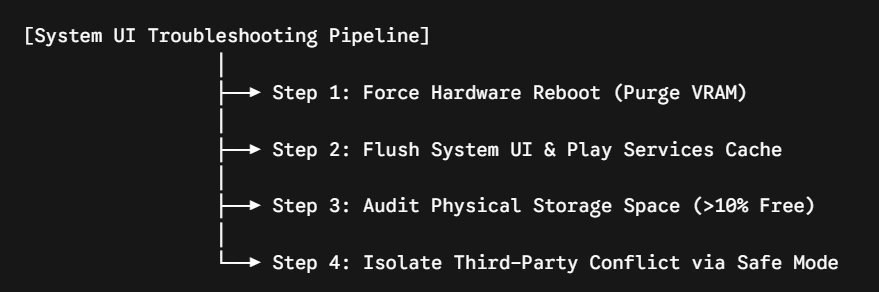
Step 1: Execute a Force Hardware Reboot
A standard soft restart might be blocked if your interface is fully frozen. Instead, you need to initiate a hardware-level override to drain the volatile RAM and clear hanging processing loops.
- The Method: Press and hold the Power Button and the Volume Down Button simultaneously for roughly 7 to 10 seconds. Do not let go until you feel the hardware vibrate and see the manufacturer’s boot logo appear on the display. This completely flushes your temporary memory paths without altering your stored media.
Step 2: Flush the System UI & Google Play Services Cache
If the error occurs randomly after your phone boots, a corrupted cache block is the likely culprit.
- Navigate to your device Settings menu and select Apps (or Applications / See All Apps).
- Tap the three-dot menu icon in the upper-right corner and select “Show system apps” (this is required because System UI is protected by default).
- Locate System UI in the list, tap it, and navigate to its Storage & Cache sub-menu.
- Tap Clear Cache.
- Go back to your App list, search for Google Play Services, and repeat the process by clearing its system cache files as well.
Step 3: Audit Your Local Storage Volumes
Android relies heavily on unallocated storage blocks to write swap file data. If your device has less than 10% of its total storage capacity free, interface processes will lock up waiting for disk space to clear.
- Open Settings > Storage (or Device Care > Storage).
- Review your large files, unused applications, and system media logs.
- Delete residual data or offload photos to cloud setups until you have a safe operational buffer of local storage space.
Step 4: Use Safe Mode to Isolate Faulty Apps
If clearing internal cache pools fails to stabilize the phone, a downloaded application or home screen widget is likely triggering the interface collision.
- Press and hold your physical Power Button until the software power-down menu appears.
- Press and hold the on-screen “Power Off” or “Restart” button for 3 seconds.
- A prompt will appear asking if you want to Reboot to Safe Mode; tap OK to confirm.
- Your phone will restart with a “Safe Mode” indicator locked at the bottom of the screen, disabling all third-party downloads.
If your device operates flawlessly in Safe Mode without throwing any interface warnings, a recently installed app or third-party launcher is causing the crashes. Restart normally to exit Safe Mode, then systematically uninstall your most recent downloads until the system remains stable.
| Diagnostic Target | Testing State | Required Adjustment | Expected Result |
| Volatile RAM | System Freeze | Hard reboot via physical buttons | Drops hanging memory states |
| System Cache | post-Update Lag | Clear System UI and Play Services cache | Rebuilds clean interface elements |
| Disk Storage | High Bloat (<10% Free) | Clear hidden temp files / delete big files | Provides mandatory swap space |
| App Software | Infinite Loops | Boot into Safe Mode to run core OS components | Confirms third-party app conflicts |
Advanced Troubleshooting: Wipe Cache Partition
If the interface continues to crash and prevents you from accessing the Settings app altogether, you can wipe your phone’s system cache partition directly from the hardware recovery environment. Note: Unlike a factory reset, this process does not delete your personal media or accounts.
- Turn your smartphone completely off.
- Press and hold the Power Button and Volume Up Button simultaneously until the device manufacturer logo flashes.
- Release the buttons to load the Android System Recovery menu.
- Use the physical volume buttons to scroll down the menu highlights until you select Wipe Cache Partition.
- Press the Power Button once to execute the command.
- Once the cleanup task finishes, select Reboot System Now to return to normal operation.
For further reading on hardware environments, check out the Official Google Pixel Safe Mode Instructions Guide or review the Official Android Open Source System Architecture Project Documentation to better understand internal framework optimization rules.
Some Other GeekMatrex Posts:
Matrix Calculation Apps for Computer Science Students: 2026 Reviews
Best Android Apps for Students (2026): The Ultimate Study Toolkit (30 Apps + How to Use Them)